Dify Now Supports Video Generation, With a Tutorial for Building AI Video Apps
Build text-to-video and image-to-video apps in Dify with the Doubao video plugin: install, authorize, import a DSL, or build from scratch with Chatflow.
On this page
TL;DR: if you just want to try it out, jump straight to the demo links at the end of the post.
No more chit-chat. Here's the result first:
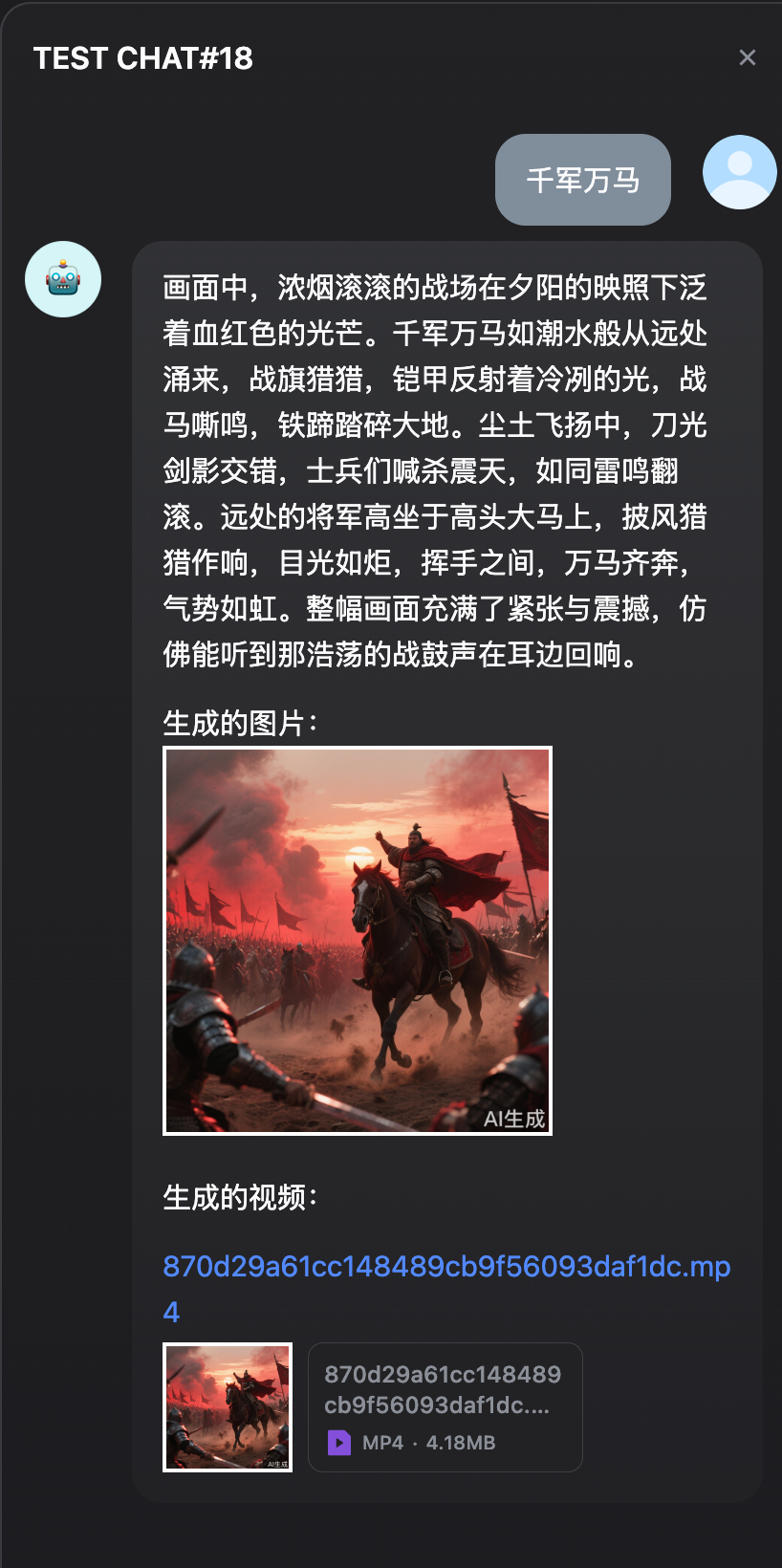
Type some text into the app's chat box and you get a video. Even a single simple sentence is automatically expanded into a detailed video prompt before the video is generated.
This post walks through how to try text-to-video yourself, and how to build your own AI video generation app.
- All-in-one image-to-video app: https://udify.app/chat/18qSv1wysmRTsw34
- Text-to-video: https://udify.app/chat/y3eBFyaxNJkXDlca
- Image-to-video (upload a PNG): https://udify.app/workflow/YY6EdT3ztLfvQiKY
Sample results (these videos were embedded in the original WeChat post; here we keep the cover frames. For the full animated effect, click the demo links):
- Girl and fox (text-to-video)

- Thousands of troops charging (text-to-video)

- King and airplane (image-to-video)

- Ancient warhorse (image-to-video)

A sketch of the image-to-video workflow interface:
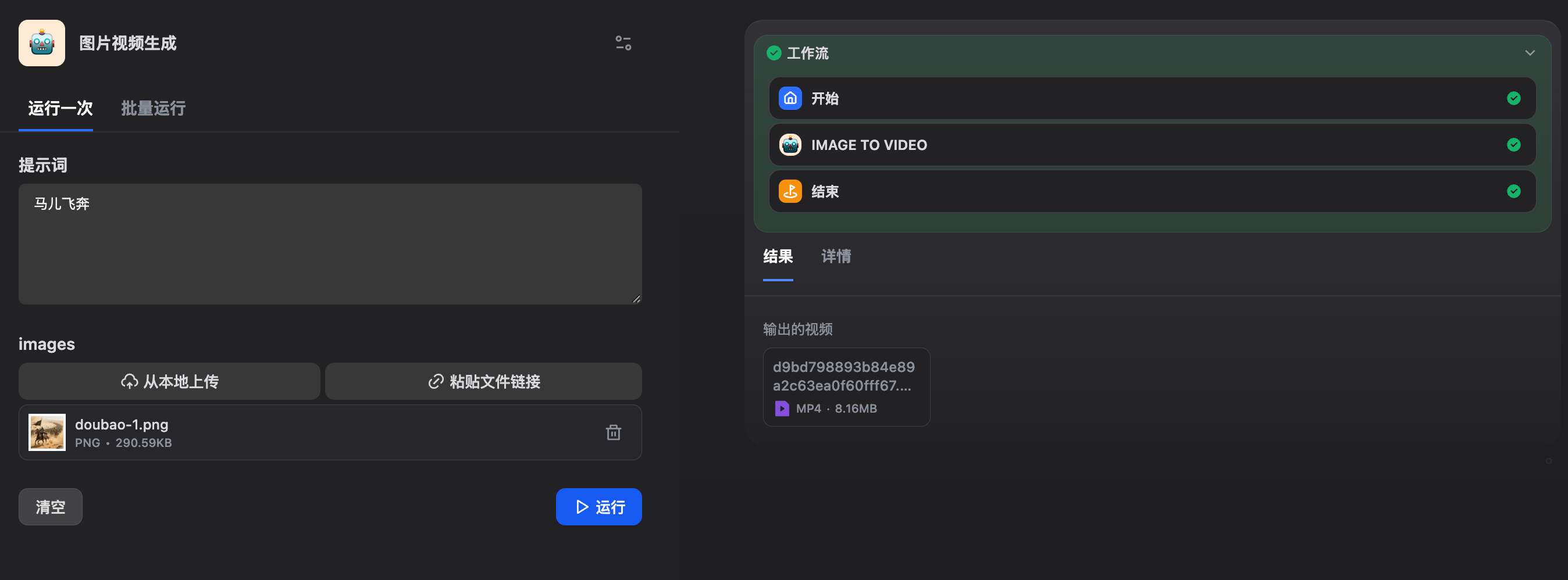
No complicated sign-up or authentication is needed. Just let your imagination run.
#How it works
All three apps were built in Dify. The core of it is Dify's video generation plugin.
If you don't know Dify yet, think of it as a playground for AI apps, where you assemble an app like playing with building blocks. Official site: https://dify.ai/
Here are the full steps to reproduce it. It takes about three minutes.
#1. Sign up and log in to Dify
Open https://cloud.dify.ai/ and sign up with your email. You can switch the language in the top-right corner. You can also install the open-source community edition.
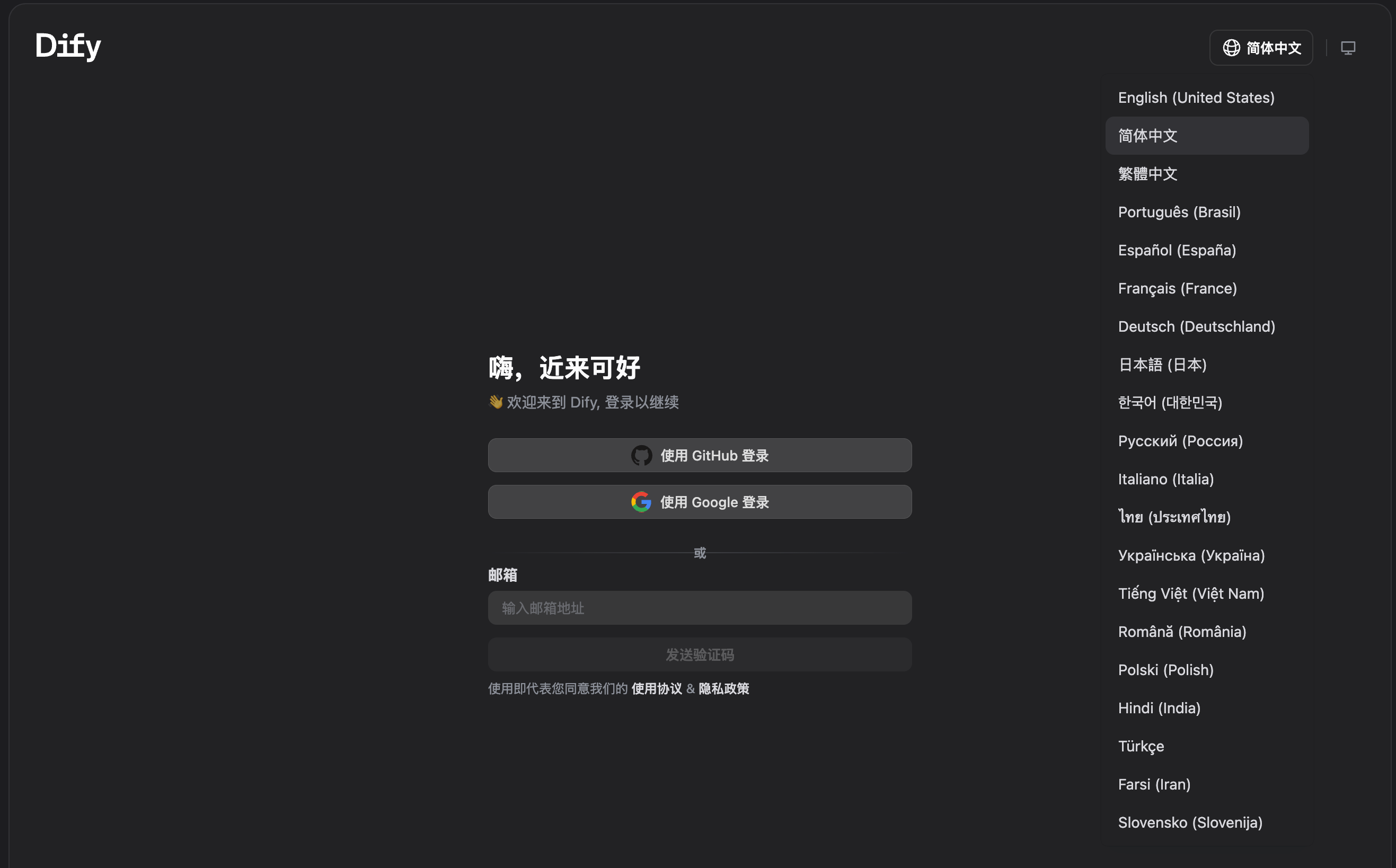
#2. Install the video plugin and complete authorization
Dify itself is not a video model. Video generation relies on an external plugin.
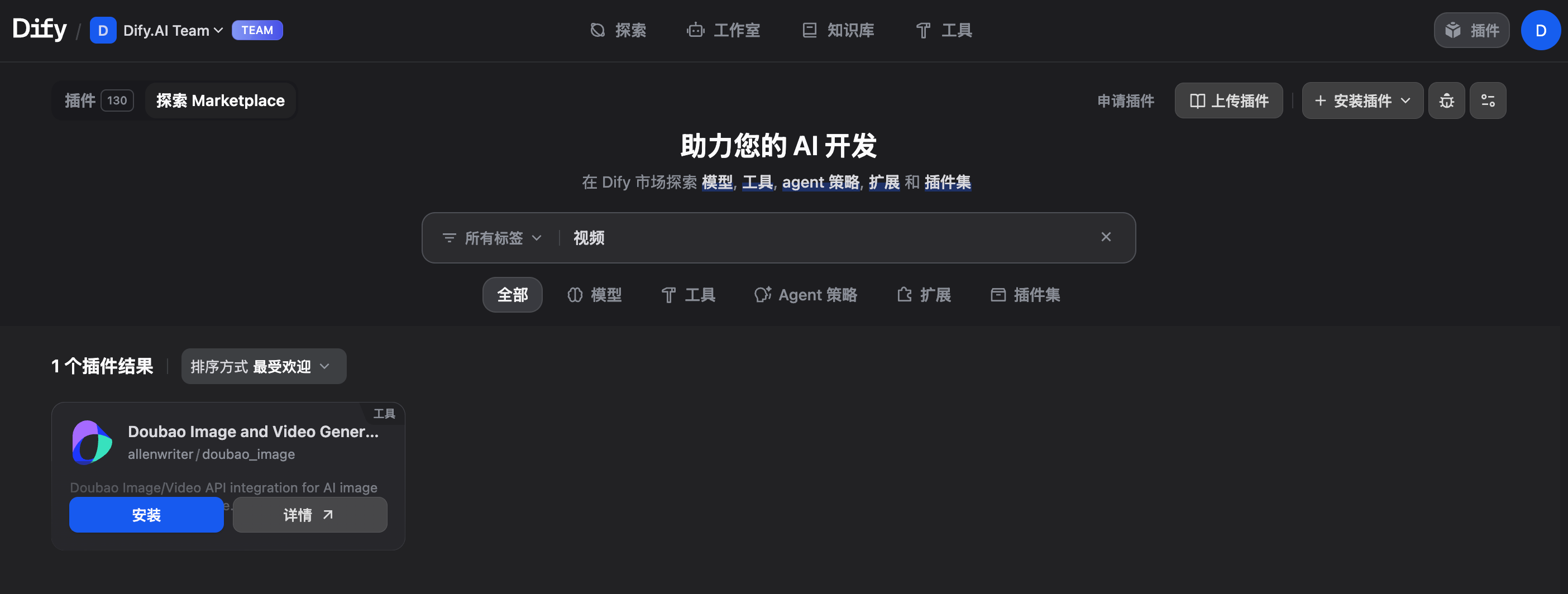
Top-right: "Plugins" → "Explore Marketplace". Search for "video" and find Doubao Image and Video Generator. Its capabilities are based on Doubao.
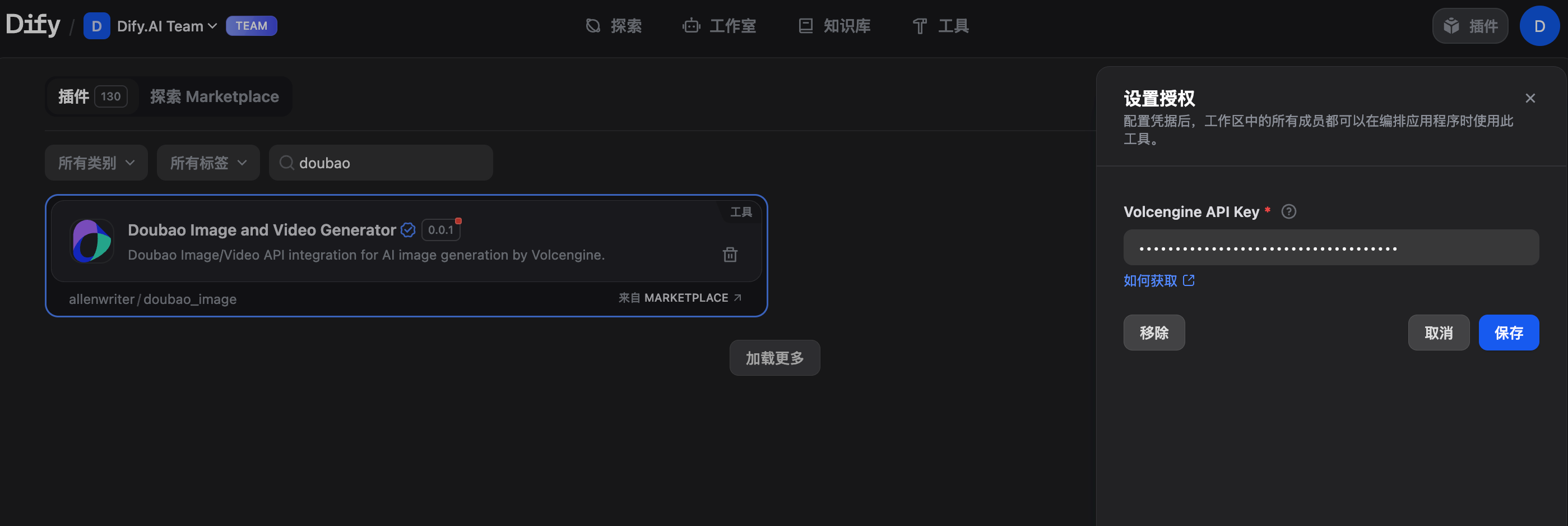
After installing, enter your own API key to complete authorization. Don't write the key into the docs or commit it to a repository.
#3. Create an app
After you've signed up for the platform, you still need to create an app and then add video generation to it.
#3.1 Copy a ready-made app
Under the hood, a Dify app is a DSL. On the web, use "Import DSL file" and paste in a link:
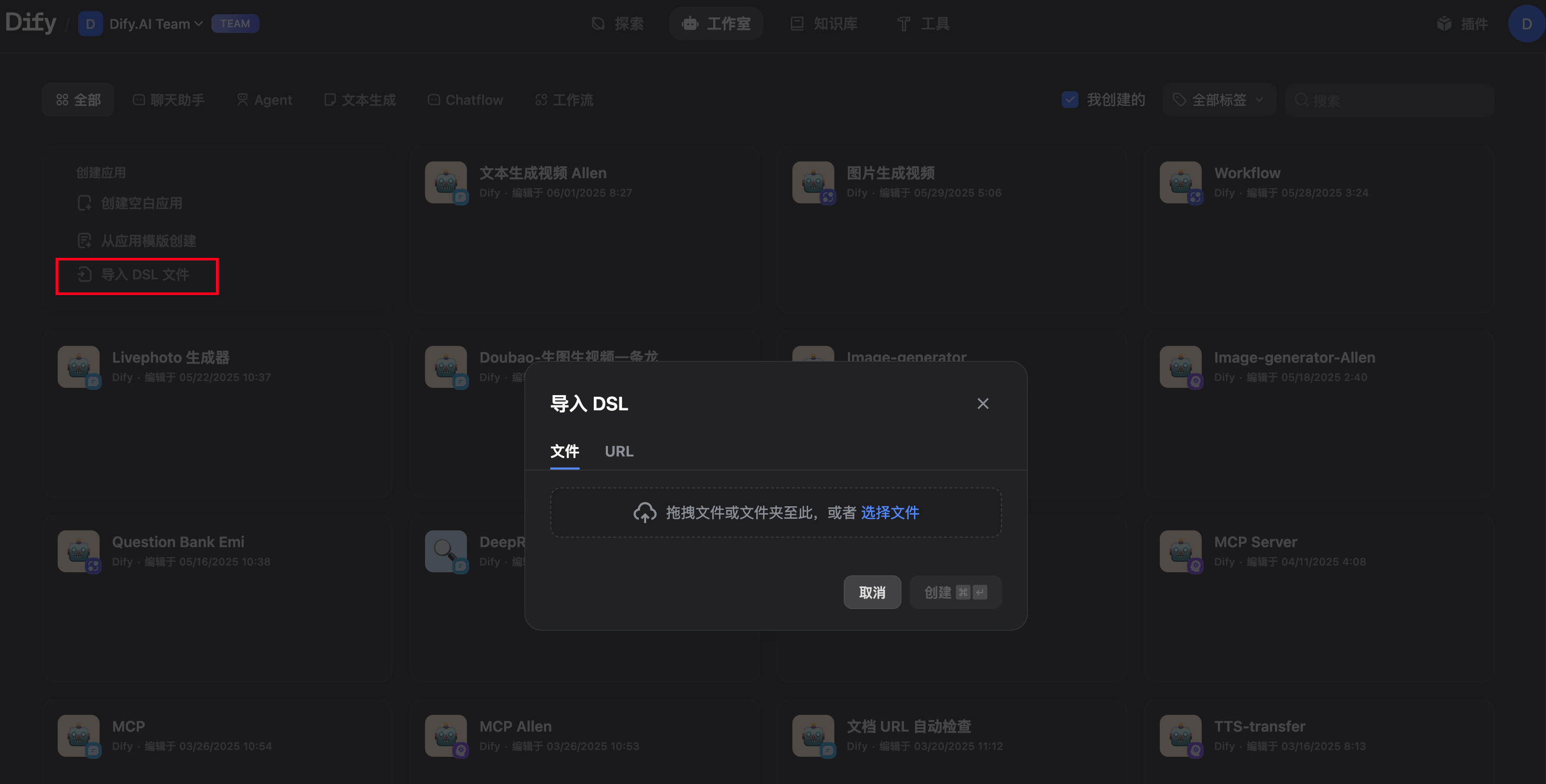
- Text-to-video: https://r2.xmsex.net/2025/06/07cd66a9979953c29475dd34dd8663bf.yml
- All-in-one image-to-video: https://r2.xmsex.net/2025/06/3334f9aed0fd9dbe00b1872bf931184c.yml
- Image-to-video: https://r2.xmsex.net/2025/06/6b76198e75d363debeb065bc74f1160d.yml
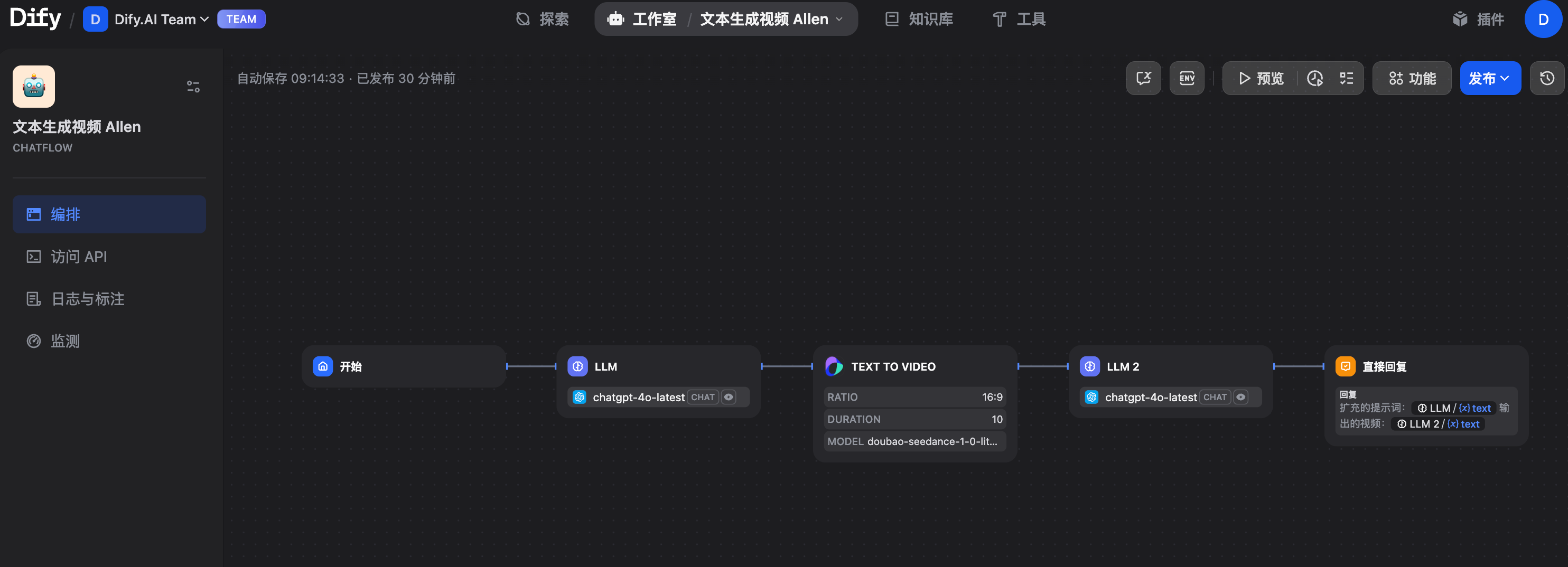
Once the import succeeds, you should see the app interface below:
#3.2 Build from scratch
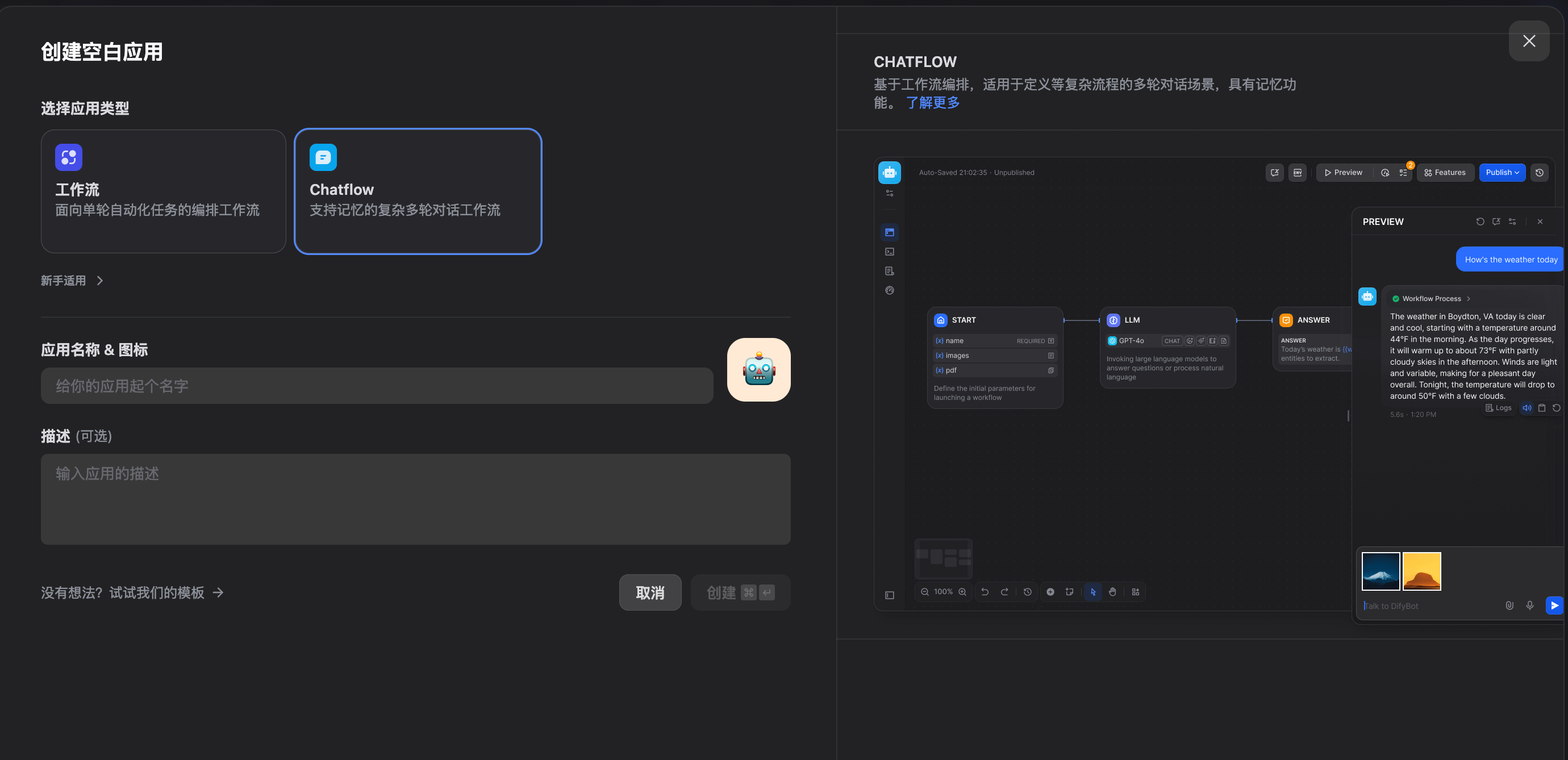
Create a blank app, choose Chatflow, and fill in a name and description.
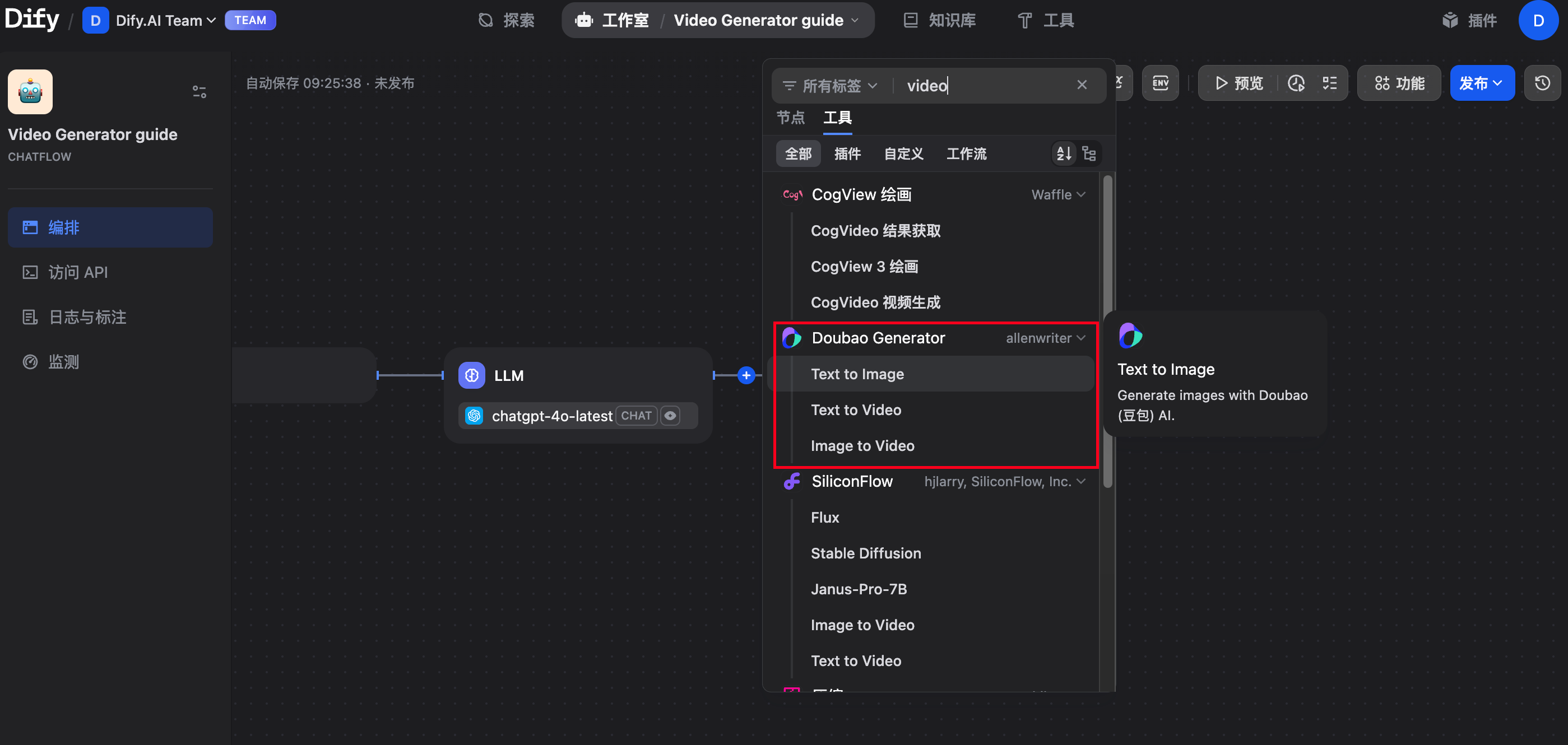
Add a tool node and choose Doubao Generator. Depending on the effect you want, pick text-to-image, text-to-video or image-to-video.
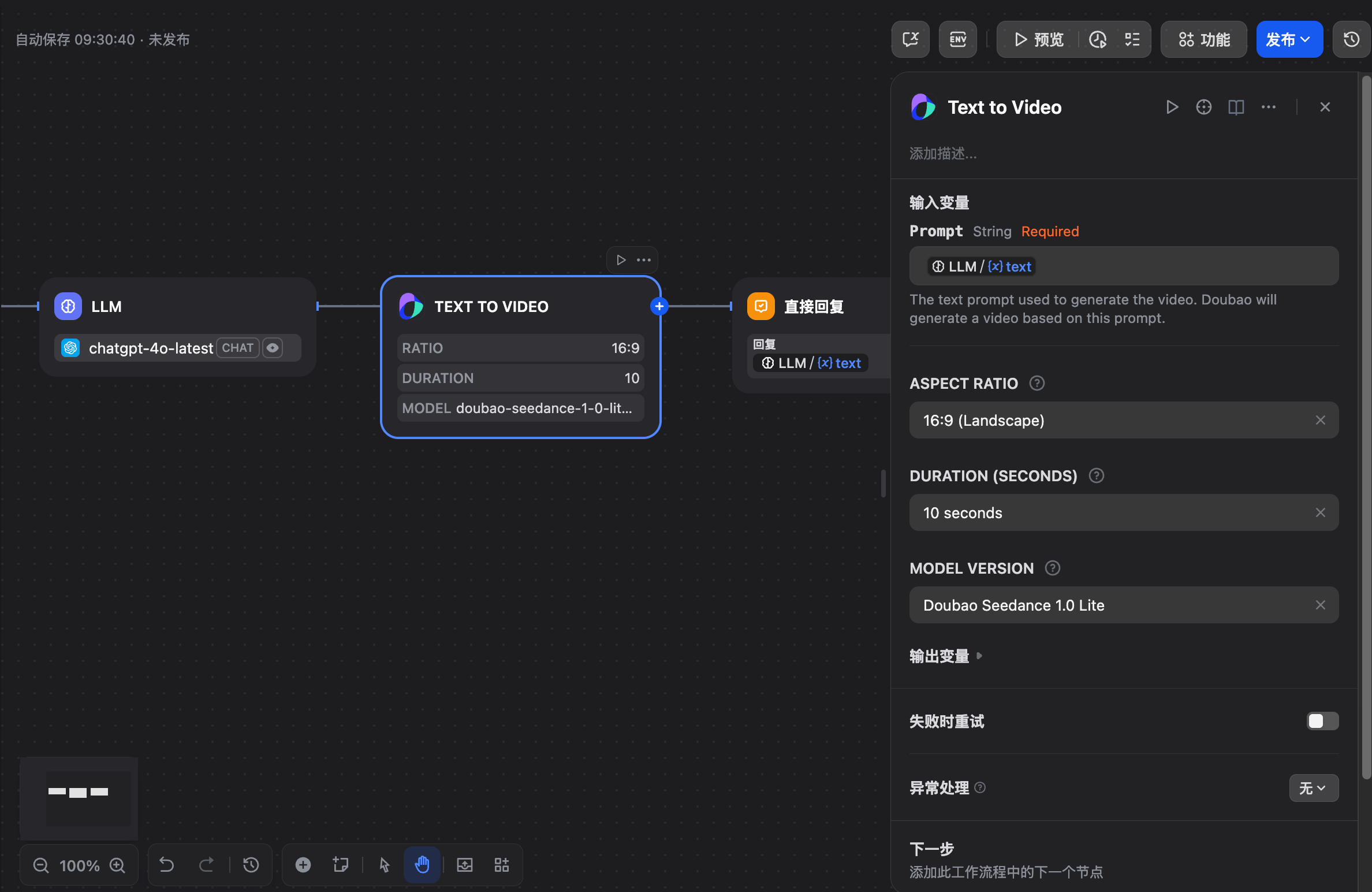
Each tool node has default inputs and outputs. For text-to-video, the input is the prompt and the output is the video the plugin generates.
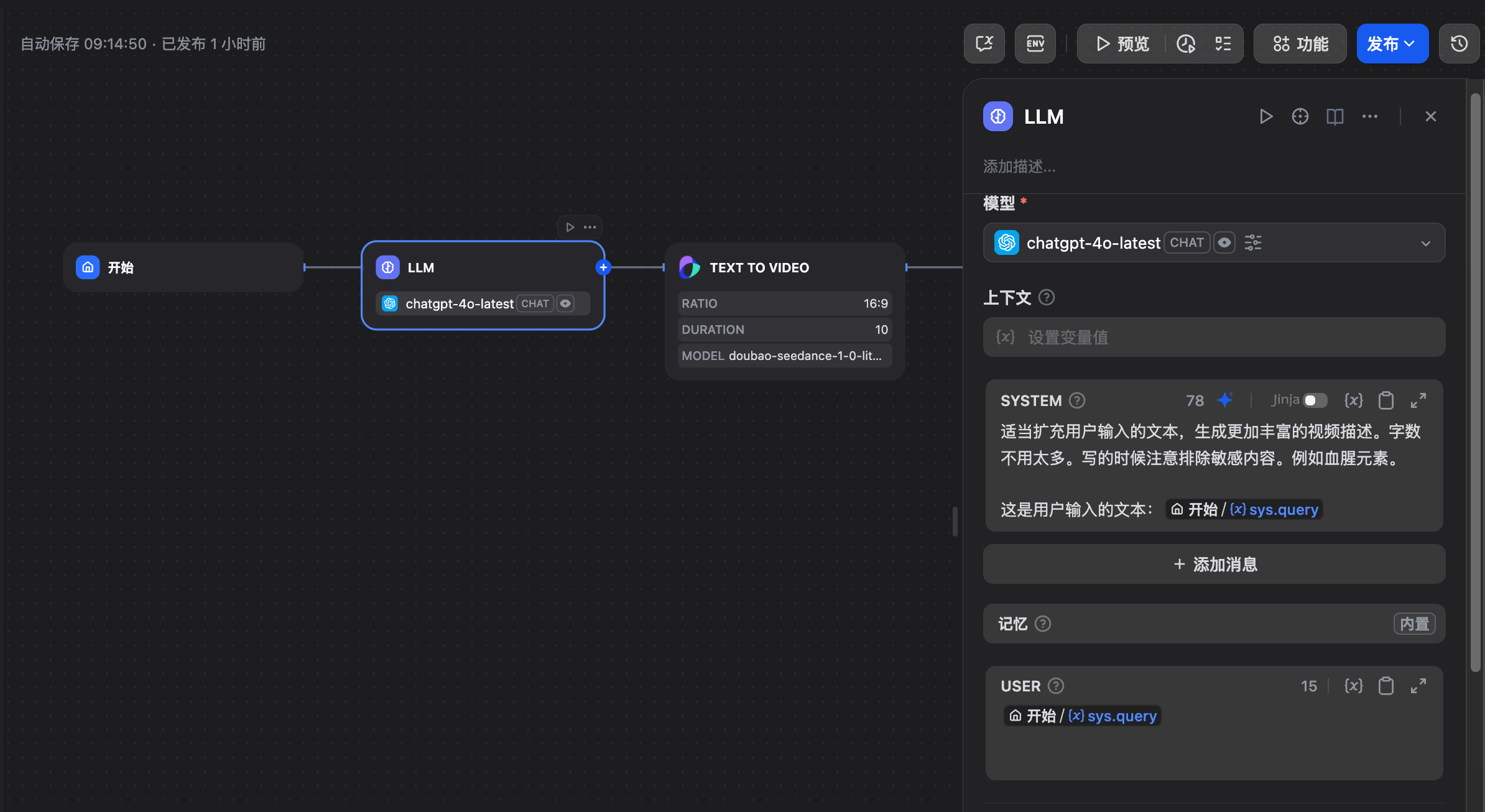
I connect the input to the output of the previous LLM step. A user's prompt is often not detailed enough, so first let the model expand it into a detailed video prompt, then send it to the generation node.
This plugin can also be used inside an Agent node.
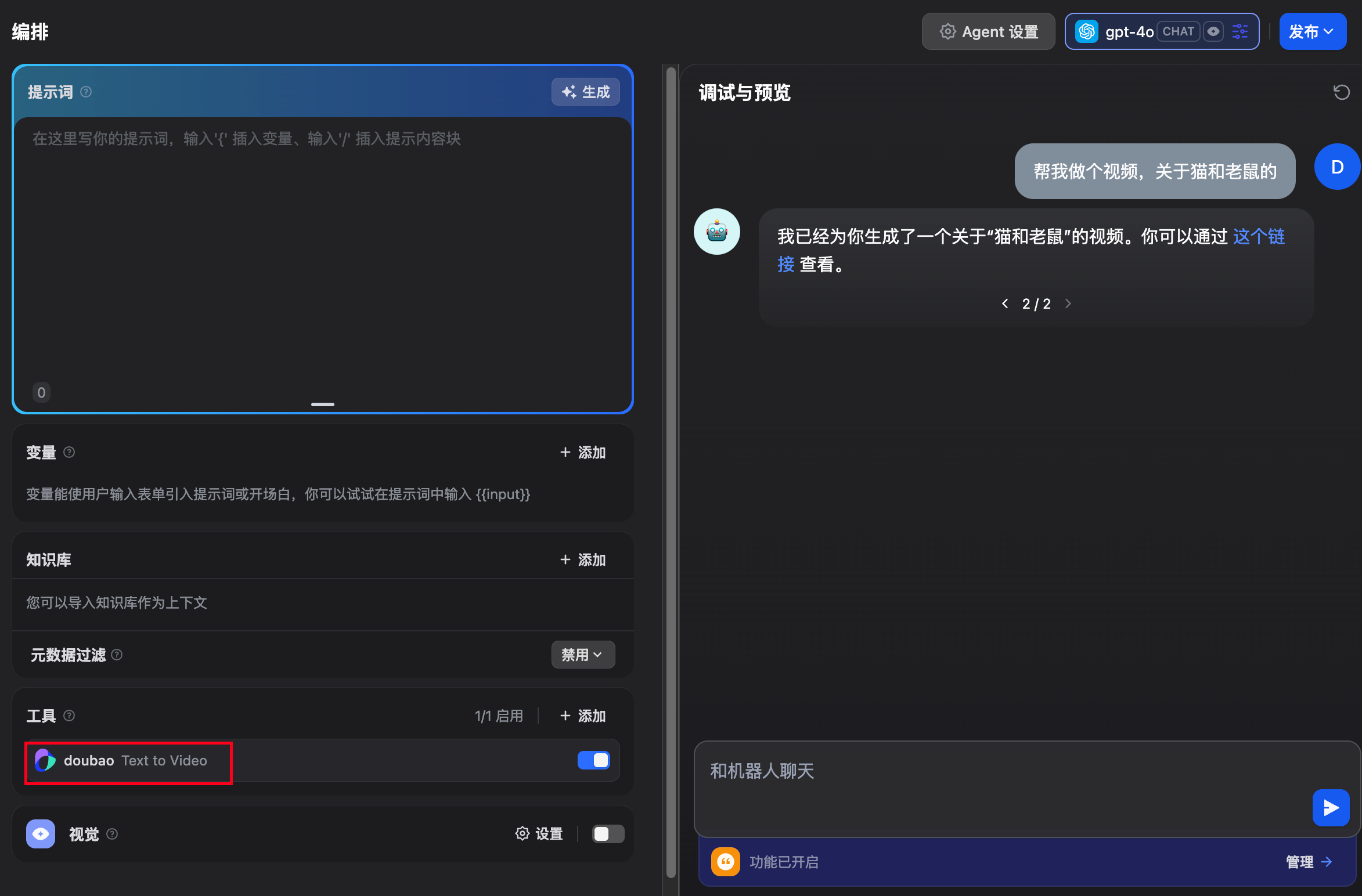
If you don't understand workflows yet, start here: Dify Workflow.
#Summary
In the past, generating video in Dify usually meant using an HTTP node to call an external API. It works, but it isn't elegant, and everyone who wants to make videos has to set it up again. This is a common need, so it's better to make it a plugin where you just enter an API key and go.
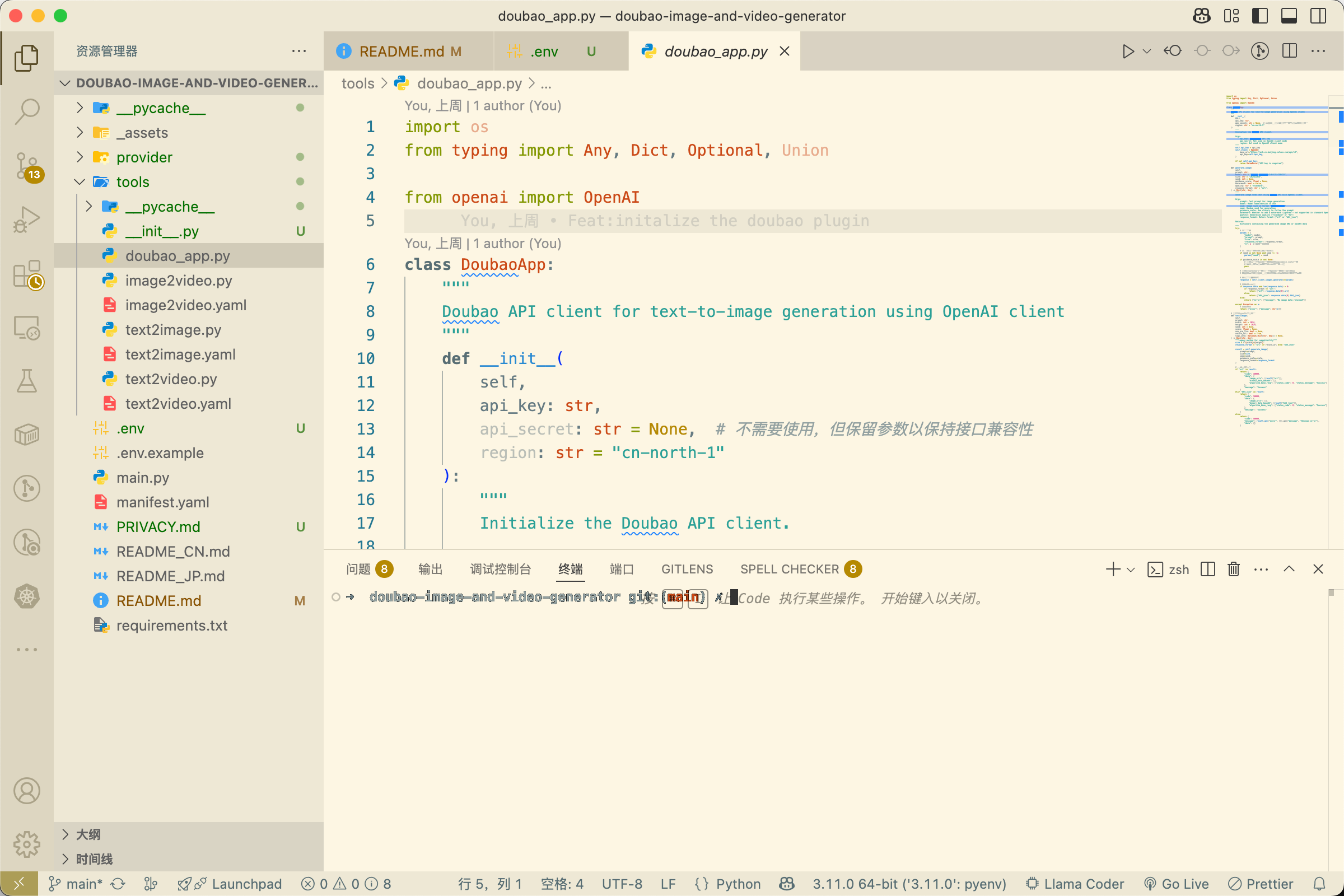
Plugin source code: AllenWriter/doubao-image-and-video-generator
Developer docs: Getting started with Dify plugins
If you also want to try video generation in Dify, or want to develop your own plugin but don't know where to start, feel free to reach out on WeChat:

Original article: https://mp.weixin.qq.com/s/obqH8fliSfFIJC0yH7dqvg